Print and export your resume as PDF or ZIP
Paper and margins, a PDF with working links, and a ZIP with your source files. None of it uses credits.
Set the paper size and margins
Paper size and margins live in the Settings tab.
@page {
  size: A4;
  margin: 0.5in;
}
Use size: letter for the US and Canada and size: A4 elsewhere. Margins accept in, cm, mm and pt. Add break-inside: avoid in the CSS tab to anything that should not split across pages.
Export a PDF or ZIP, or print
Export PDF saves your changes, renders the resume in Chrome and downloads a PDF with clickable links. Its menu holds Print and Download ZIP, and on a tailored copy also Compare with base.
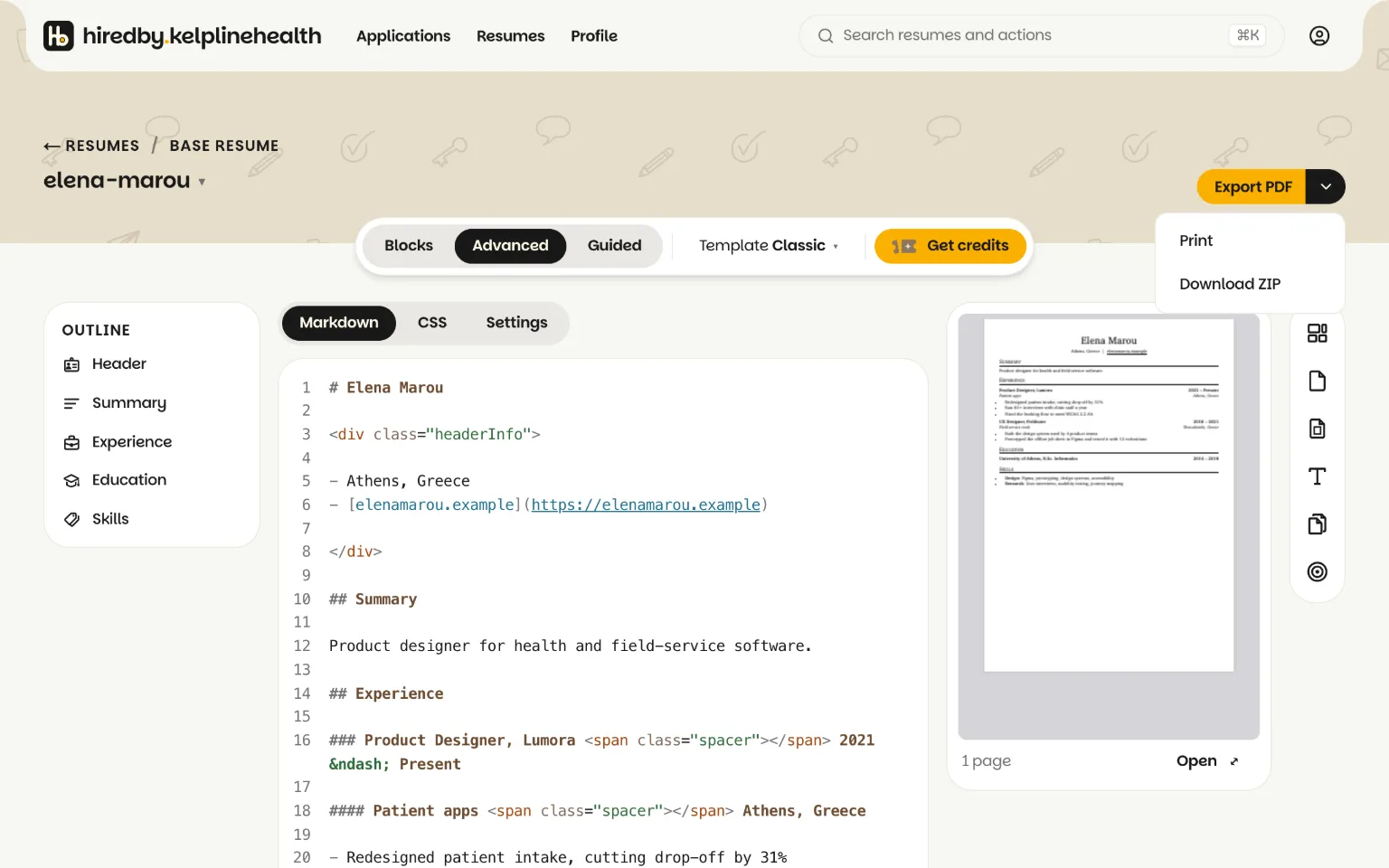
Print opens your browser’s print dialog instead. Choose Save as PDF, set margins to None and turn headers and footers off.
Exports never cost credits. If your old builder's free plan downloads only a TXT file, as Resume.io's does, see the Resume.io alternative with free PDF export.
Download ZIP saves your changes and downloads <resume name>.zip with resume.md, resume.css and settings.css, ready to back up or open elsewhere. A tailored resume also includes offer.json. The files are your source as written.
One PDF prints at a time per account. If one takes too long, the message says whether the Markdown or the styling slowed it and when to try again: 2 minutes after the first time, then 10, then 60 if it keeps happening the same day. Print, in the same menu, works meanwhile.
Are the links in the PDF clickable?
Yes. Export PDF prints your resume in a real browser, so email addresses and web links stay clickable and the text stays selectable rather than becoming a picture of text.
Related guides
The print options in the rail, from paper to page numbers, are covered in the Advanced guide. Exports never cost anything, as the resume builder with no subscription page explains, and the ZIP holds the same Markdown described in Markdown and variables.